AI product images & ads
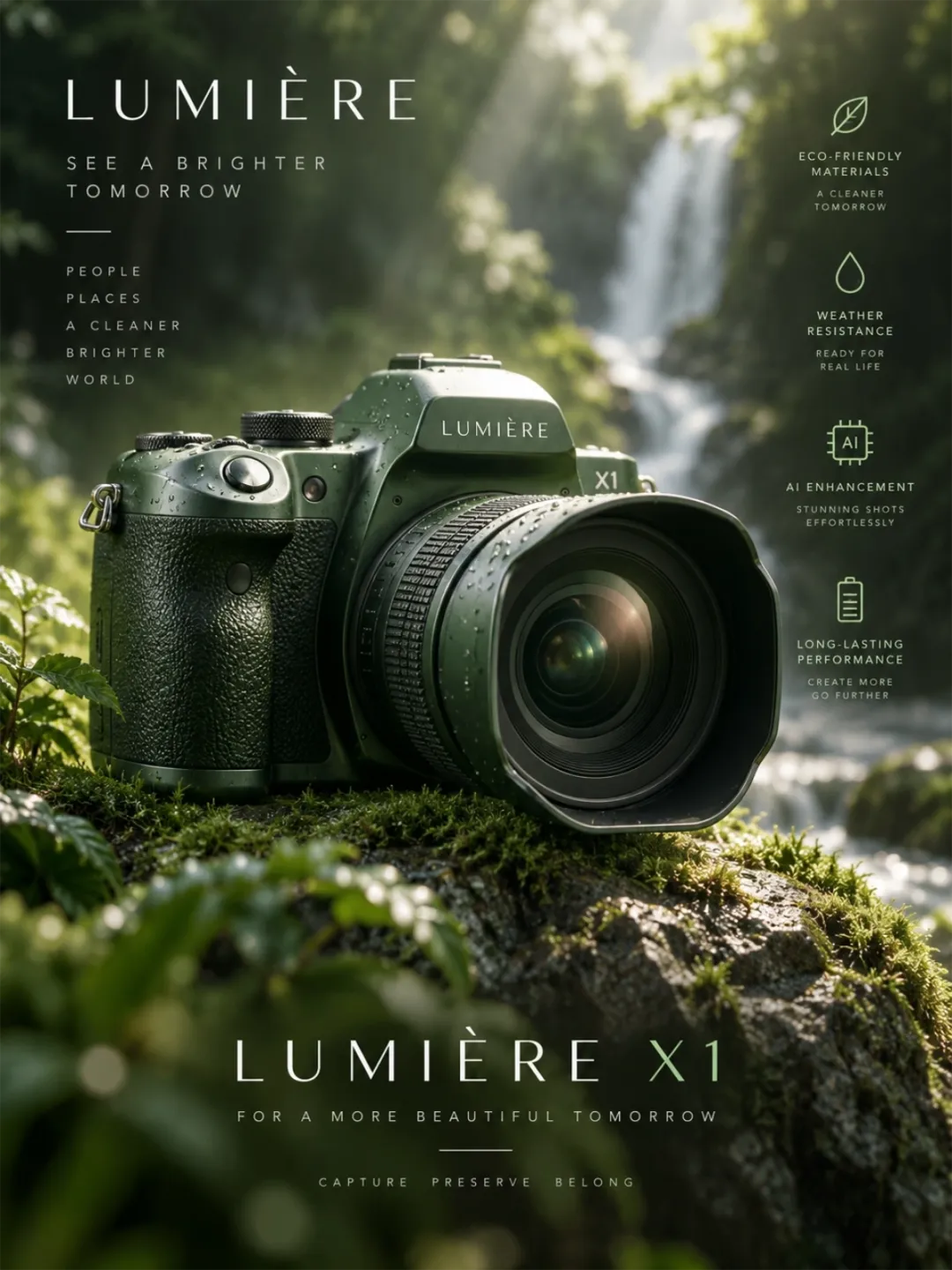
Create product photos, lifestyle scenes, and packaging concepts for ecommerce and advertising. Explore lighting, backgrounds, and headline placement while checking that product details match your reference.
One image. A bigger story.
Make ads, product photos, and posters with sharp in-image text and clear, detailed backgrounds on the GPT Image 2.5 AI image generator. Pick Flare mode when you want images fast, or Sunburst mode when you want the best quality.
Create with GPT Image 2.5GPT Image 2.5 is OpenAI’s image generation and editing model family. Use it in MiniMax Design’s AI image generator to create from text or references, refine images, and prepare visuals for design and video projects.
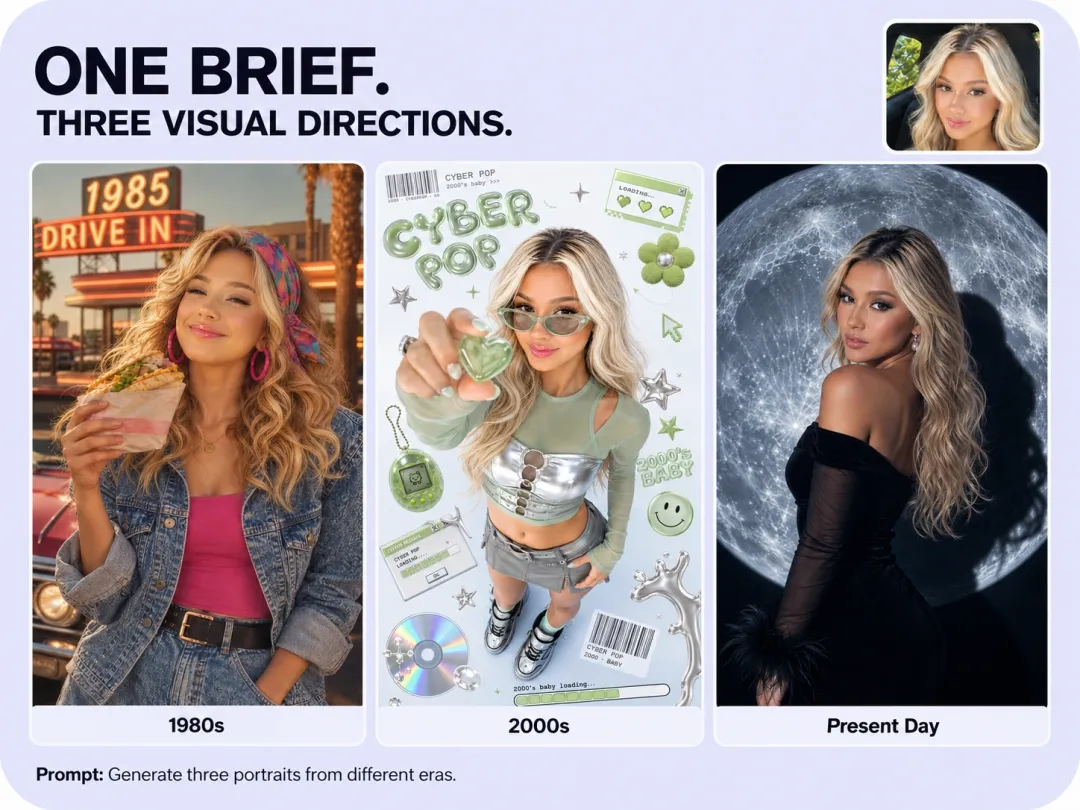
Generate AI images from a prompt or reference. Use Flare for fast creation, explore new styles and settings, and keep recognizable details from your source image as you develop a visual direction.
Create Your First AI Image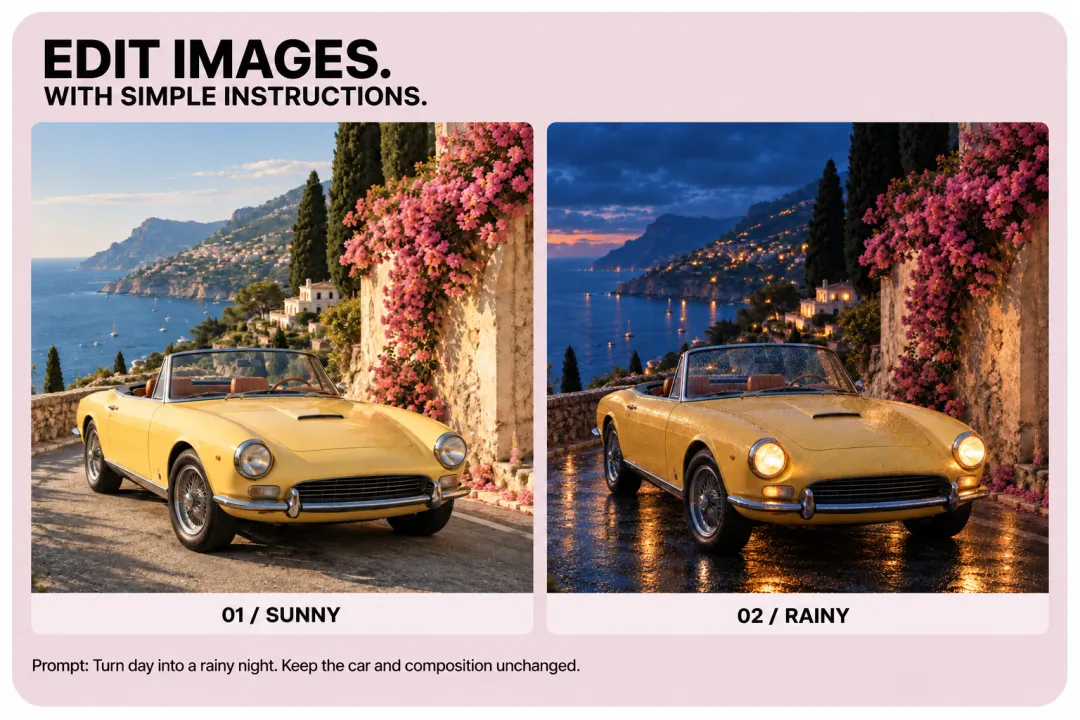
Use Sunburst for detailed image editing. Change a background, color, material, or object, and specify what should stay the same. Refine one change at a time while keeping your subject and composition in focus.
Refine Your Reference Image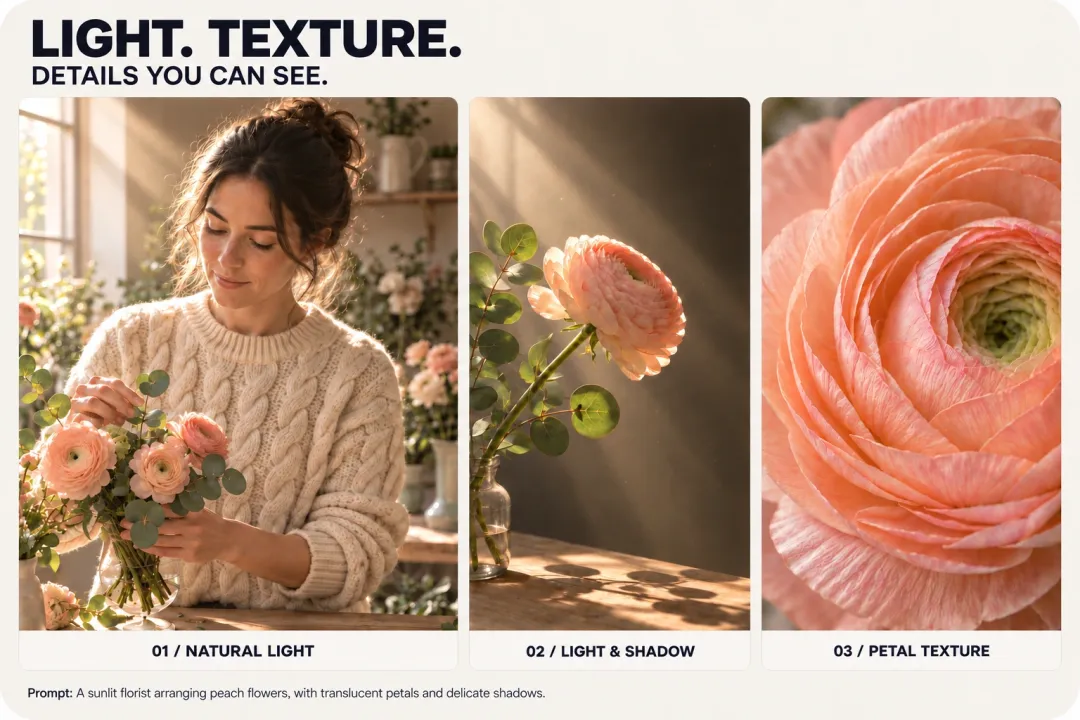
Shape natural light, delicate shadows, and tactile detail in AI images. Explore translucent petals, soft skin tones, and knitted textures, then inspect close-ups to refine the look of portraits and product scenes.
Create in Detail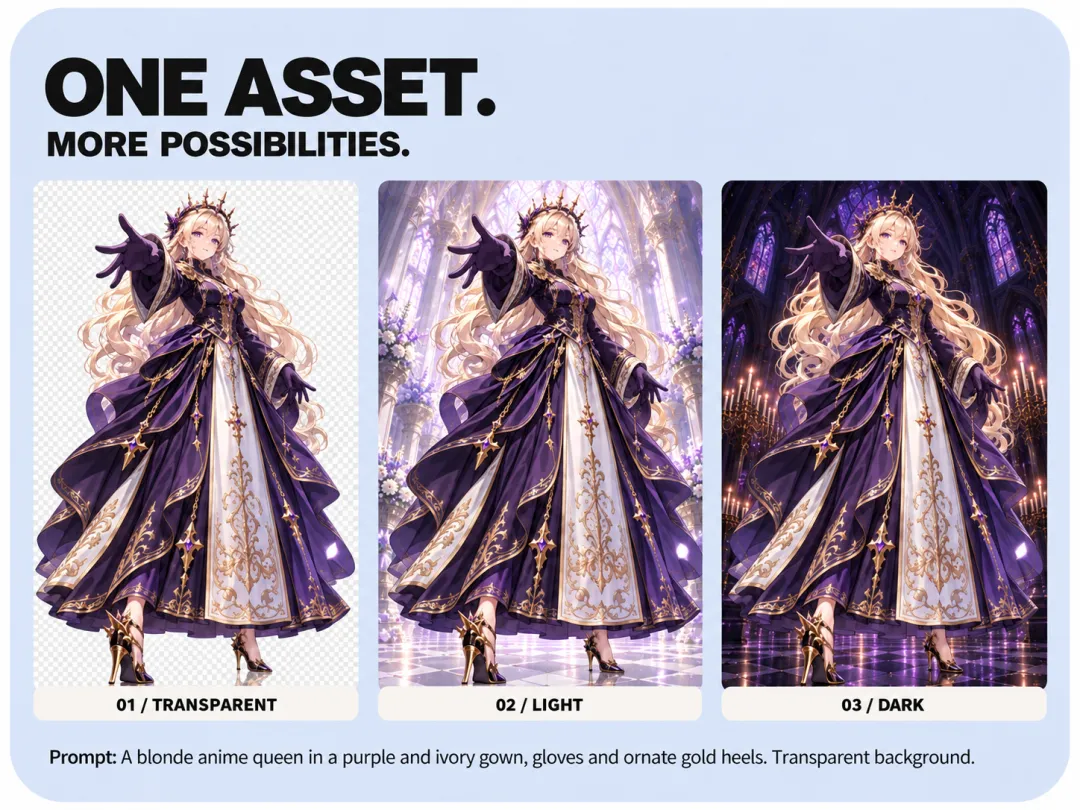
Create an isolated subject with Flare or Sunburst and export a transparent PNG or WebP. Reuse characters and product assets in new layouts, checking fine edges on light and dark backgrounds.
Create a Transparent Asset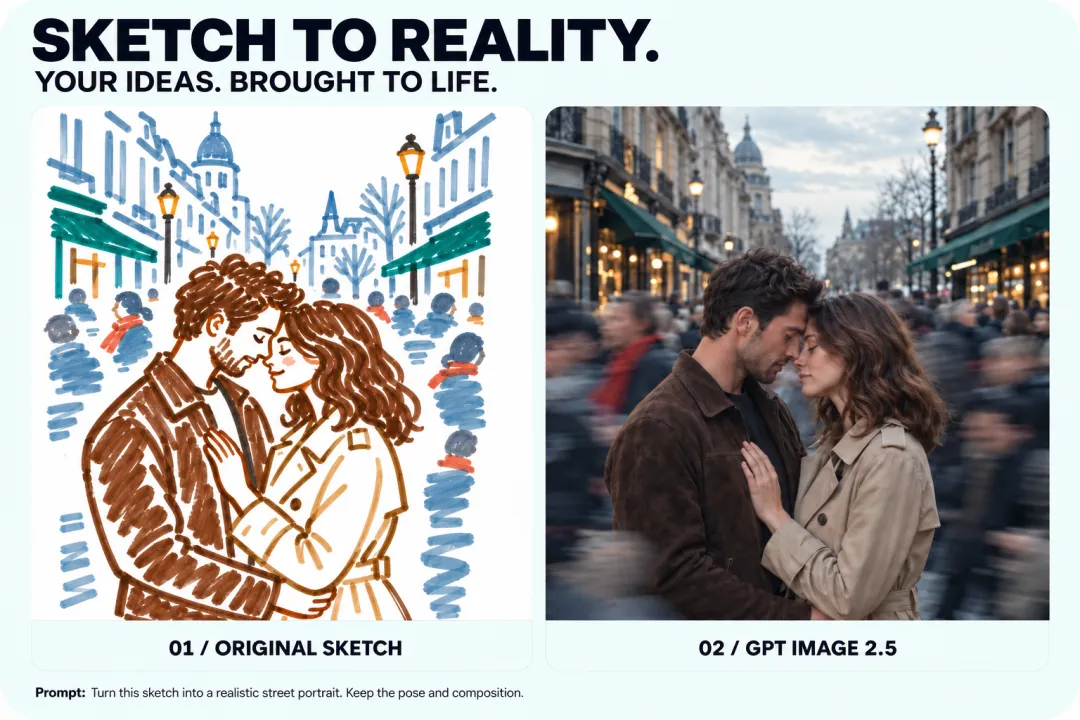
Upload a sketch and describe the scene you have in mind. Turn simple lines into realistic people, lighting, and detailed backgrounds while guiding GPT Image 2.5 to preserve your pose and composition.
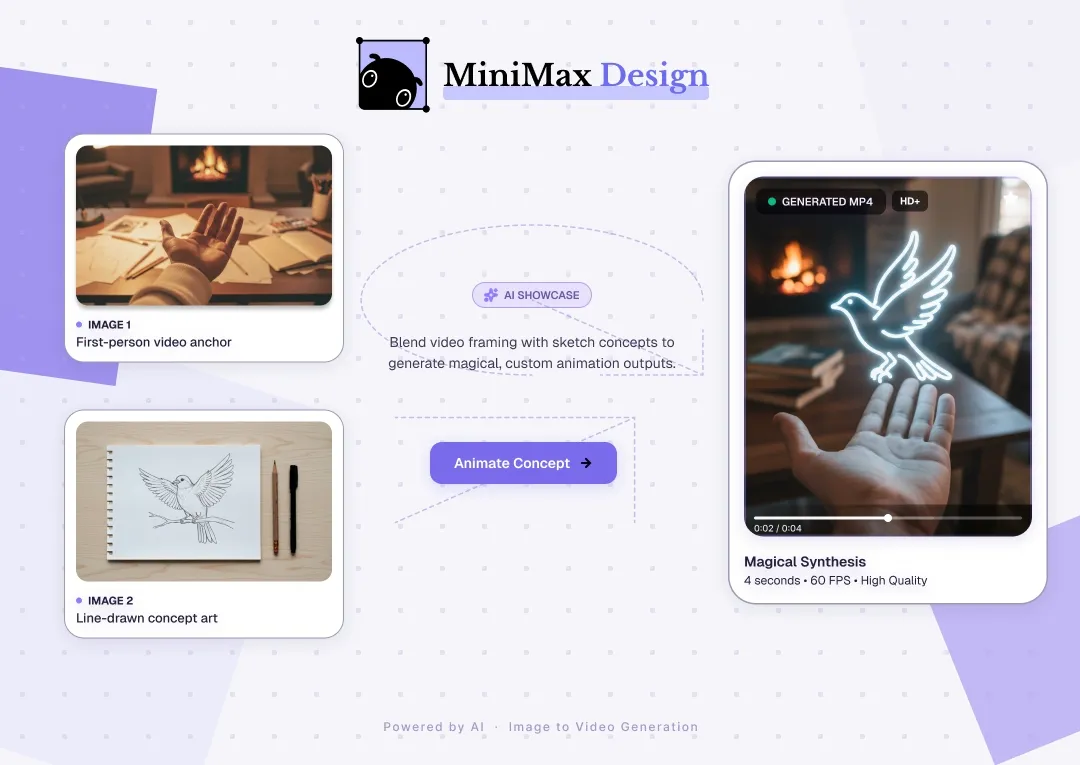
Bring Your Sketch to LifeCreate and refine a source image with GPT Image 2.5, then use a supported video model in MiniMax Design for image-to-video generation. Define the camera movement and subject action to bring your scene to life.
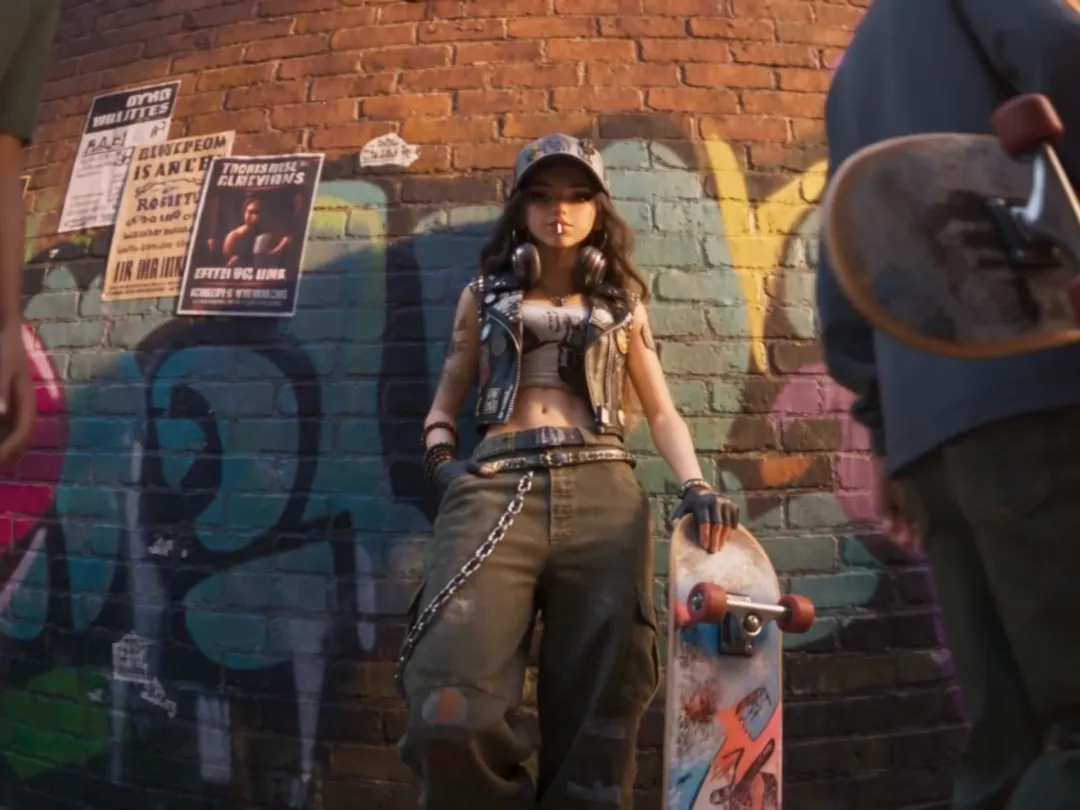
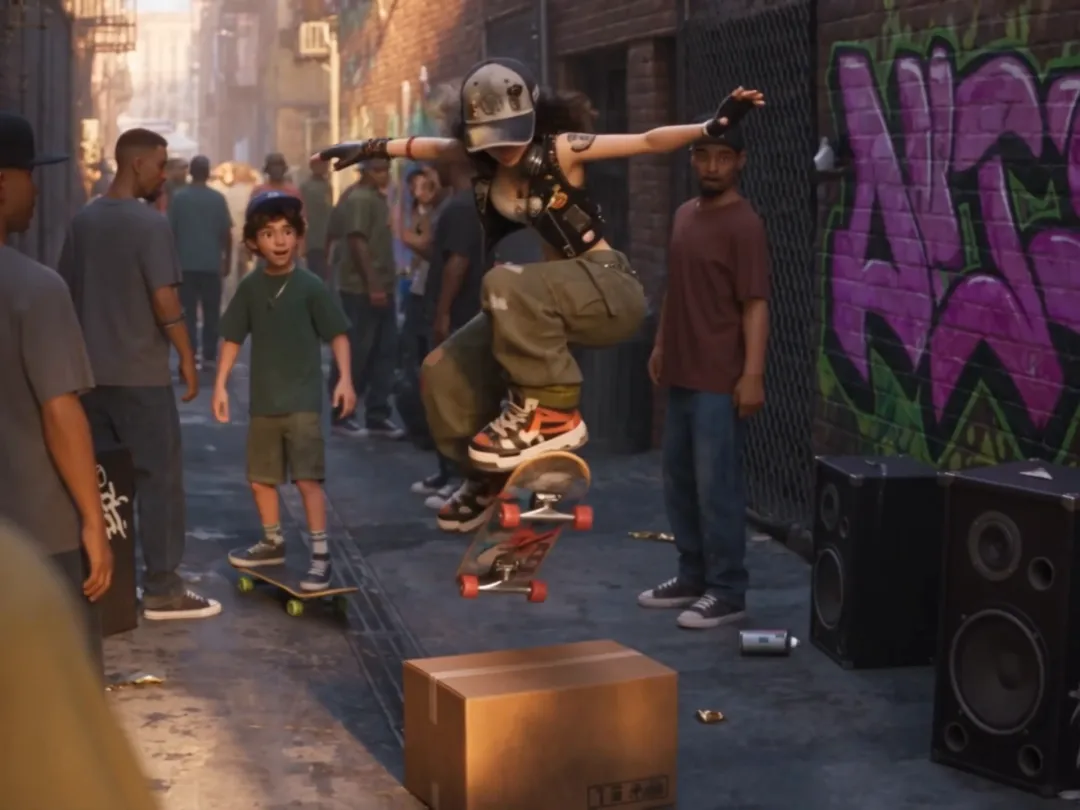
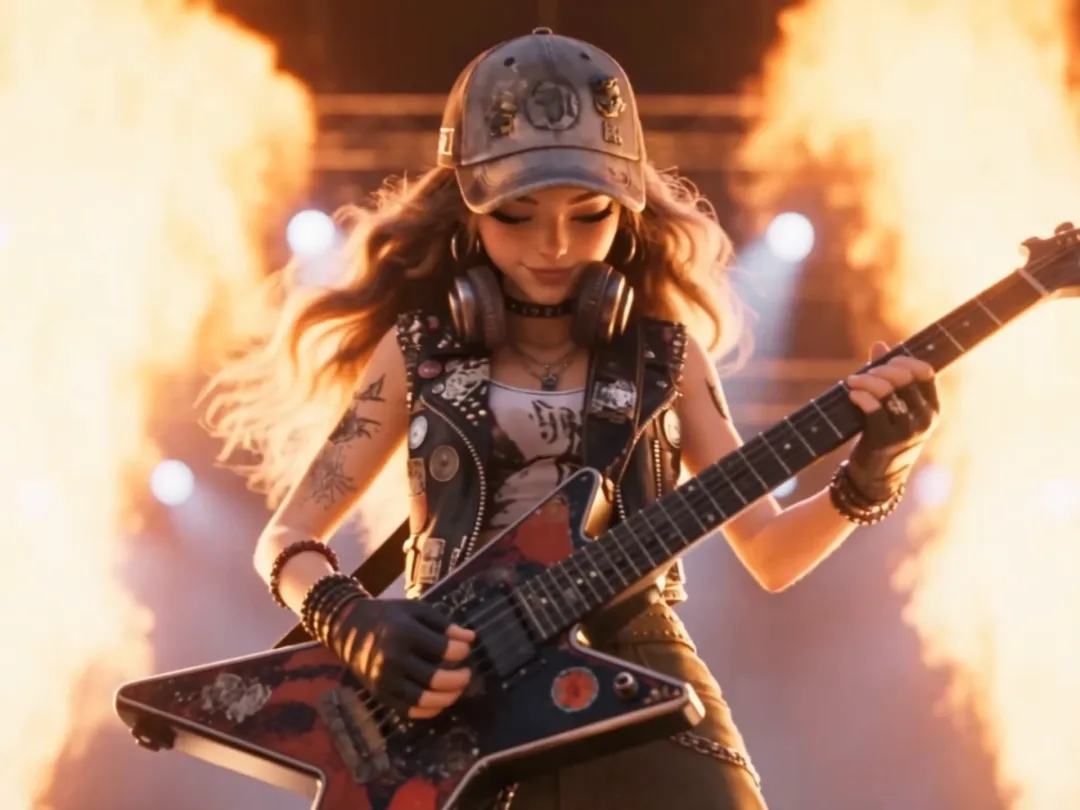
FROM FRAMES TO MOTION Bring street, skate, and stage scenes to life with an AI video generator.
Create AI product images, marketing graphics, portraits, and concept art. Start with a prompt or reference and shape the result for your next project.
Create product photos, lifestyle scenes, and packaging concepts for ecommerce and advertising. Explore lighting, backgrounds, and headline placement while checking that product details match your reference.
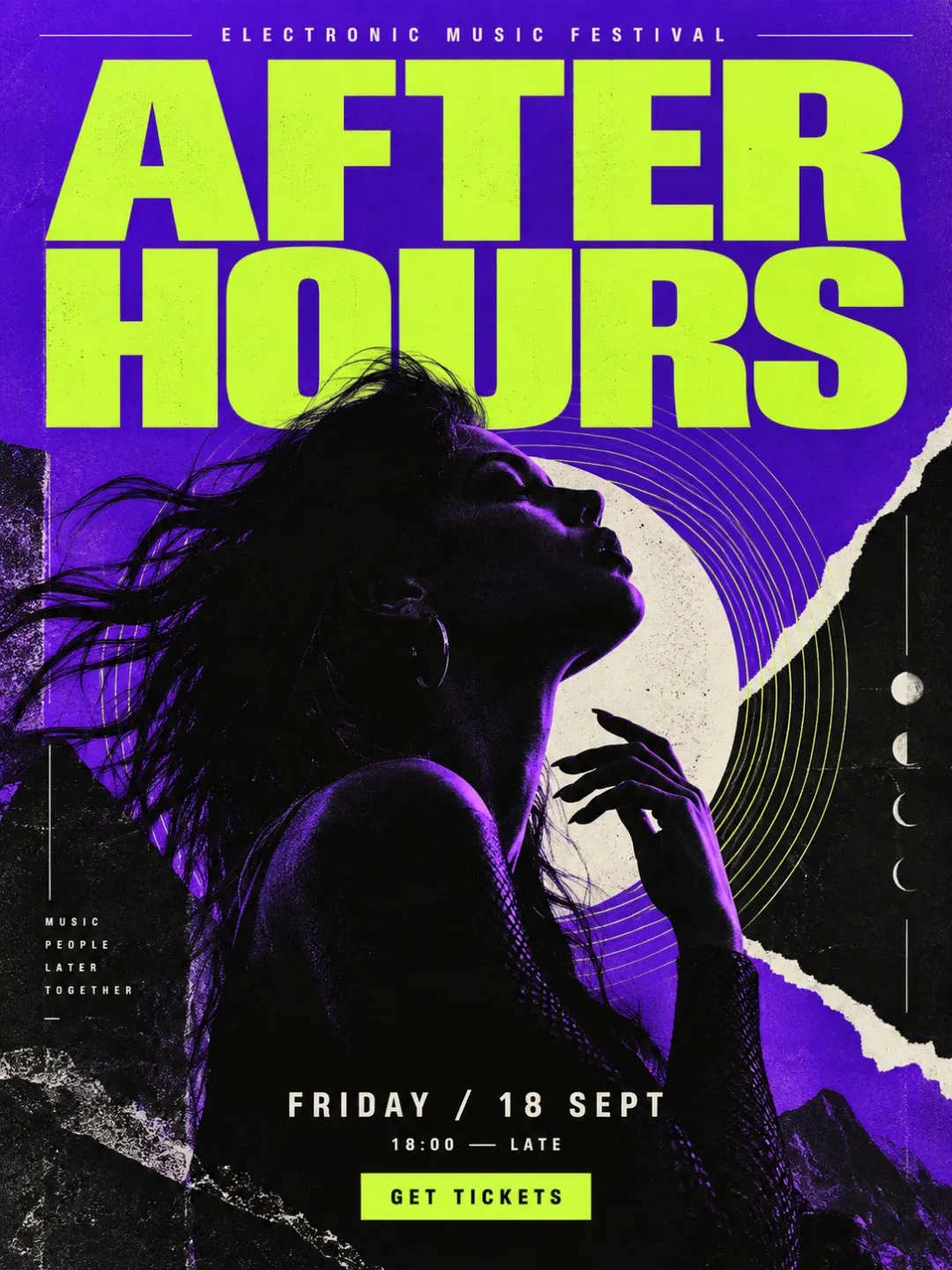
Create posters, product packaging concepts, and social graphics with a clear visual hierarchy. Specify the exact wording and where it belongs, then review spelling, layout, and small text before publishing.
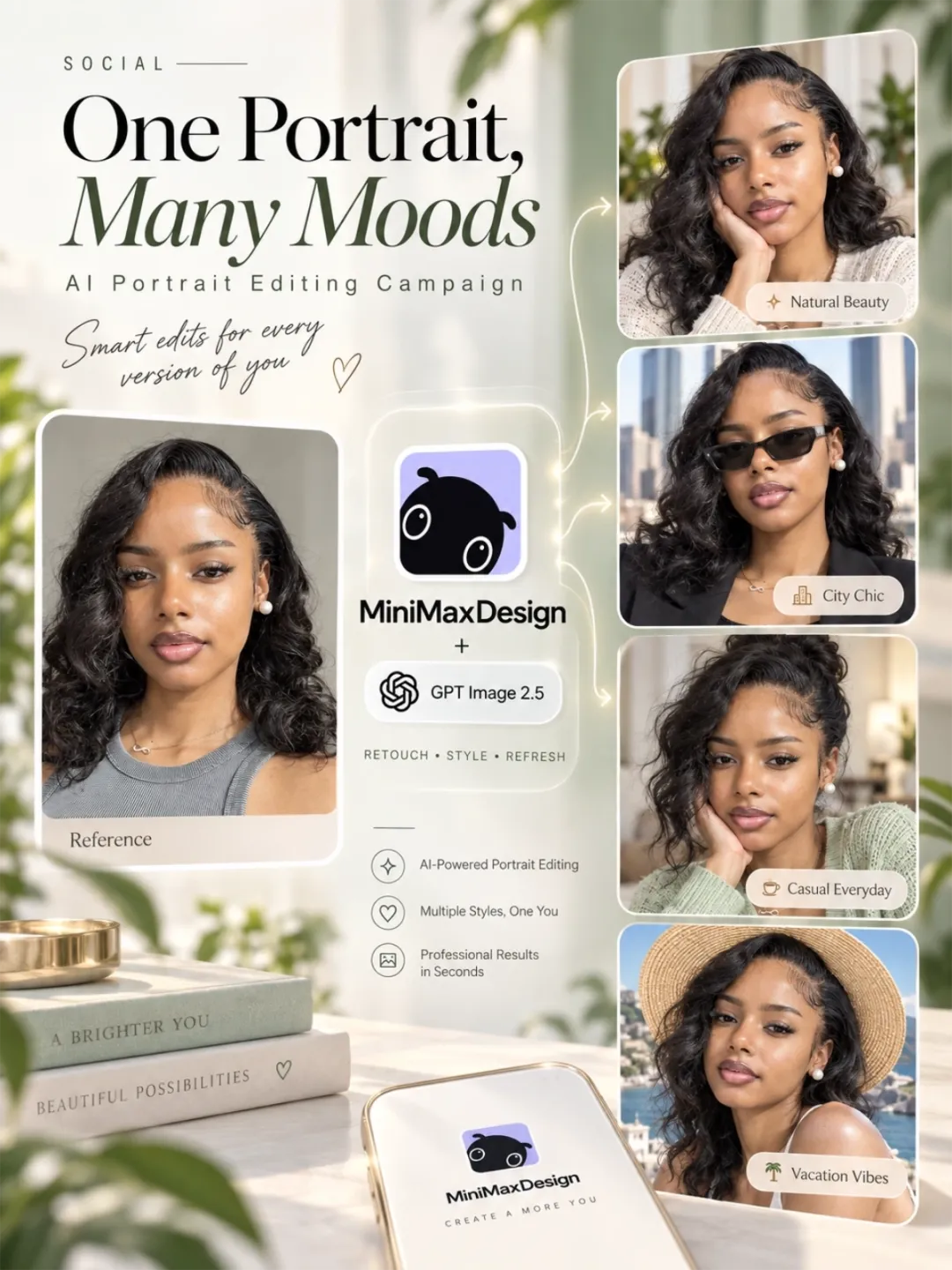
Turn a reference photo into profile pictures, editorial portraits, or illustrated avatars. Explore outfits, hairstyles, and backgrounds while specifying the facial features and other details you want to preserve.
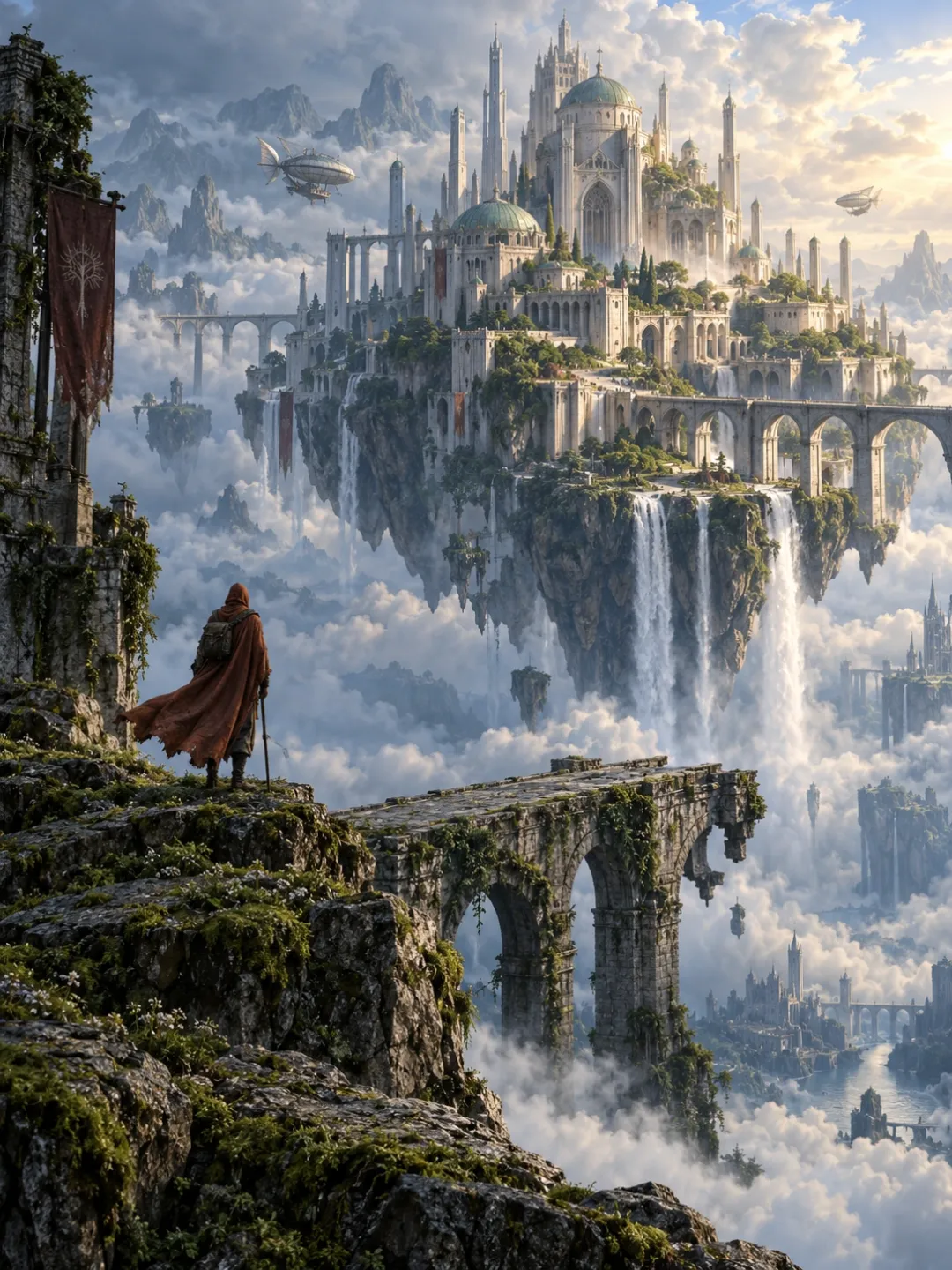
Develop characters, environments, and key story moments for moodboards and storyboards. Explore lighting and camera angles, then take a selected frame into an image-to-video workflow.
Both models generate and edit images. Use Flare for fast image generation and Sunburst for precision-focused refinements. Choose your model around the task; generation time depends on the request and settings.
| Your decision | GPT Image 2.5 Flare | GPT Image 2.5 Sunburst |
|---|---|---|
| Choose it for | Fast image generation and creative variations | Detailed creative work and precision-focused edits |
| Working priority | Speed-focused generation and editing | More attention to complex refinements |
| Inputs | Text prompts and reference images | Text prompts and reference images |
| Quality choices | Low, Medium, High, Xhigh, Max | Low, Medium, High, Xhigh, Max |
| Transparent output | PNG or WebP | PNG or WebP |
Choose Low, Medium, High, Xhigh, or Max with either model. To compare settings, keep your prompt and reference unchanged, review the images at the same size, and check the generation cost before each run.
Save an output with your prompt and reference so you have a baseline for comparing other settings.
Keep the same prompt and reference when comparing with Low. Review the actual difference in the output.
Inspect text, edges, and textures beside your earlier outputs. Judge the result at its intended display size.
Compare the same image regions against High. Check whether any visible change matters for your project.
Compare with your preferred lower setting before choosing a final output. Review both detail and generation cost.
Start with a prompt or reference, choose your model and quality, then refine and export your image.
Both models generate and edit images. Flare prioritizes fast image generation and editing; Sunburst focuses on detailed refinements. Choose by your task and review the result against your brief.
Yes. Add a reference and describe the change you need. Specify what to preserve, such as the product shape, pose, or camera angle. Review the output before making another edit.
Yes. Upload your sketch as a reference and describe the finished look, such as a realistic photo or an illustration. Specify which shapes, subject details, and composition to preserve, then refine the result.
Yes. Both models support transparency. Request a transparent background and select PNG or WebP. Check the exported file on different backgrounds; a drawn checkerboard is not an alpha channel.
Choose Low, Medium, High, Xhigh, or Max. Quality and image dimensions are separate settings. Start with a draft, then compare a higher-quality pass when fine detail matters.
Choose PNG or WebP for transparency. PNG is useful for design handoffs; WebP can suit web delivery. JPEG does not preserve transparency. Check the formats available in your export workflow.
Name the subject, composition, lighting, and constraints. Example: “A skincare bottle, soft window light, cool blue background, room for a headline.” For edits, state what to change and what to keep.
Yes. Explore product scenes, campaign visuals, and social graphics. Use references you are authorized to work with, and check packaging, logos, text, and product details before publishing.
Use a clear reference and specify what should stay the same, such as facial features, product shape, pose, or colors. Make one focused change at a time and compare each result with the reference before continuing.
Yes. Describe the poster, packaging concept, or social graphic you need. Provide the exact wording, text placement, and visual hierarchy. Check spelling and small text in the generated image before publishing.
GPT Image 2.5 creates and edits still images. To animate a finished image, use a supported video model in MiniMax Design. Motion capabilities and settings depend on that video model.
A clear source image helps establish the subject, lighting, and composition. It does not guarantee a better video: results also depend on the video model, motion prompt, and scene complexity.
Keep creating with more MiniMax Design tools.
 LIVE
LIVEDevelop creative briefs into coordinated visual assets.
 LIVE
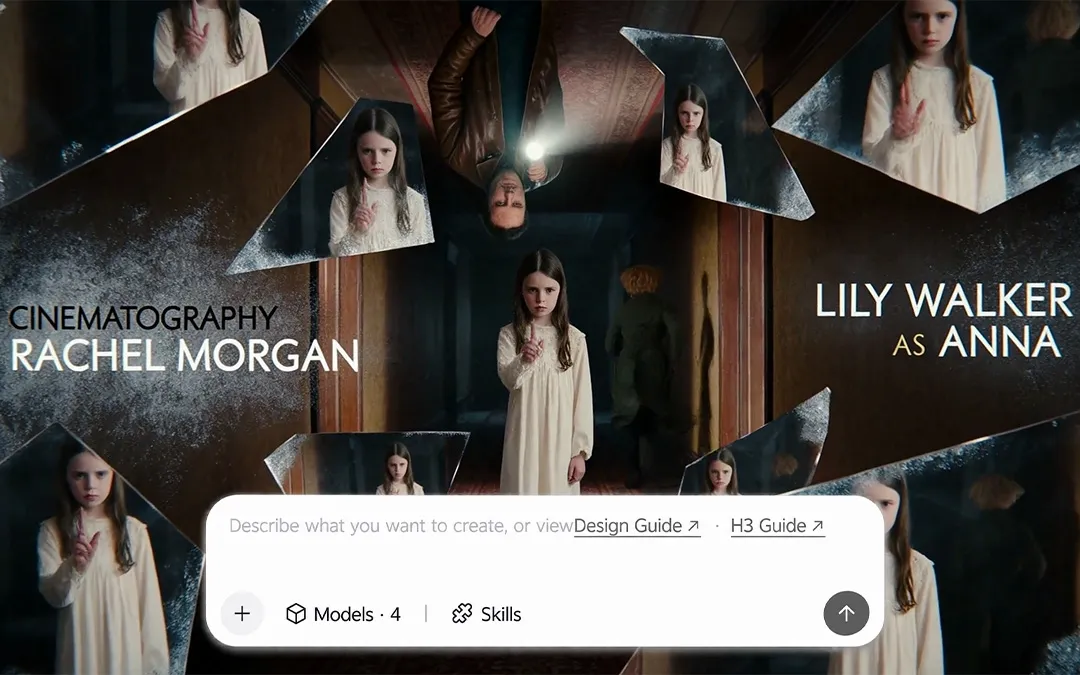
LIVEExplore video ideas, camera moves, and visual stories.
 LIVE
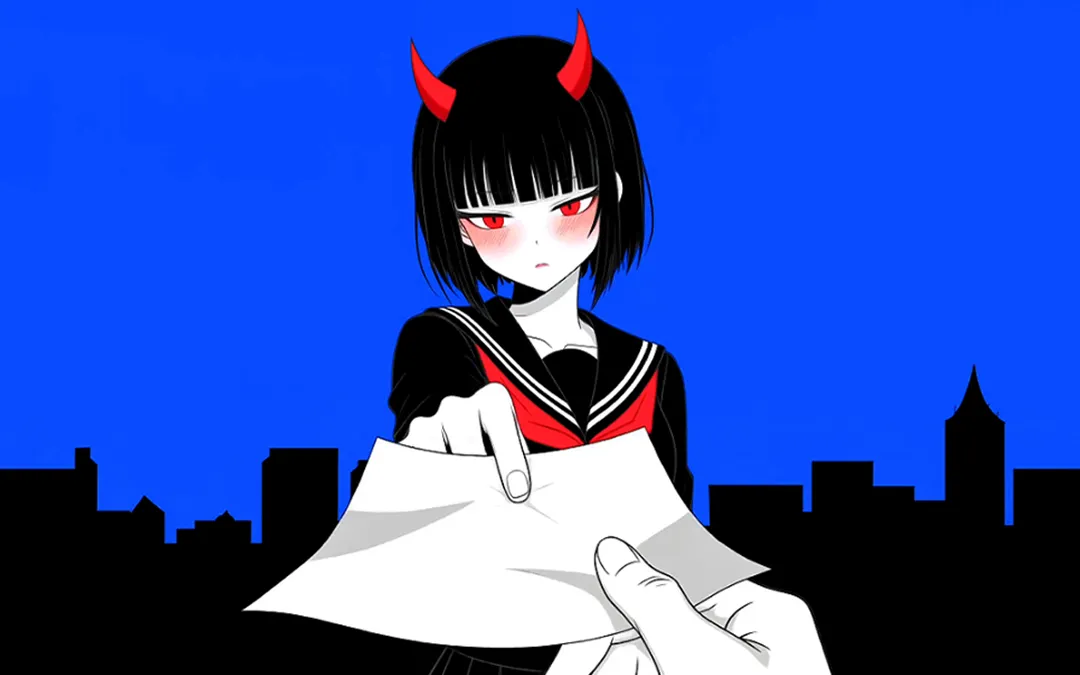
LIVEExplore anime characters, artwork, and scene concepts.
 LIVE
LIVETurn a finished image into a moving scene.
 LIVE
LIVECreate videos from text or images with MiniMax H3 Max.
 LIVE
LIVEGenerate and refine images from a prompt or visual reference.