Social media videos
Turn your footage into videos for TikTok, YouTube Shorts, and Instagram Reels. Tighten the hook, add readable captions, and adjust the aspect ratio and framing for your chosen platform.
Turn footage into stunning videos. Use text prompts to trim, add multilingual subtitles and effects, and reframe in MiniMax Design.
Edit existing footage with natural-language instructions in MiniMax Design. Shape the sequence, captions, and visuals into a finished video, from the first cut to the final frame.
Trim, merge, and reorder clips with text prompts. Shorten an opening or move a product close-up earlier in MiniMax Design, then preview and export a sequence that tells your story.
Generate multilingual subtitles with AI. Ask MiniMax Design to refine the wording, timing, and placement, creating a polished video that audiences around the world can follow.
Add transitions, filters, stickers, and video effects in MiniMax Design. Describe the look and where to apply it, then preview the result alongside your footage before exporting.
Ask MiniMax Design to add, remove, or replace visual content. Adjust the aspect ratio, framing, and subtitle placement for your target platform, then export the video you envisioned.
Edit the footage you already have into social videos, product ads, or story-driven scenes with MiniMax Design.
Turn your footage into videos for TikTok, YouTube Shorts, and Instagram Reels. Tighten the hook, add readable captions, and adjust the aspect ratio and framing for your chosen platform.
Build product ads, e-commerce videos, and influencer campaigns from your footage. Bring the product into focus, revise the message, and create versions for different offers or audiences.
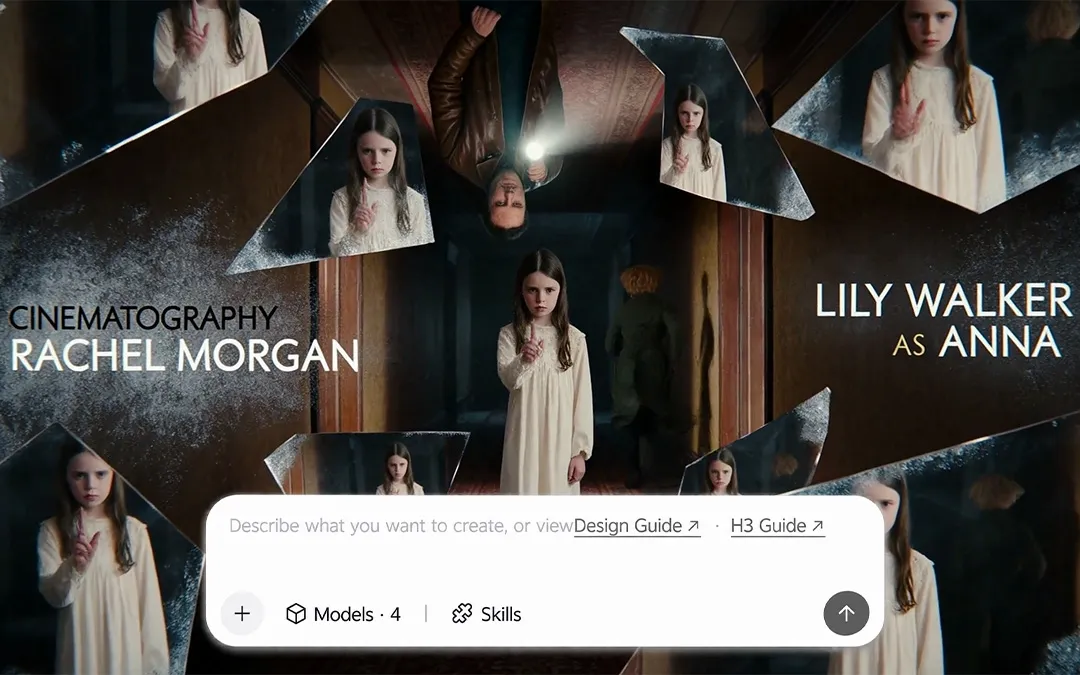
Turn short-drama scenes and film footage into compelling stories. Refine the pacing, add dialogue subtitles, and connect key moments with transitions that keep your story flowing.
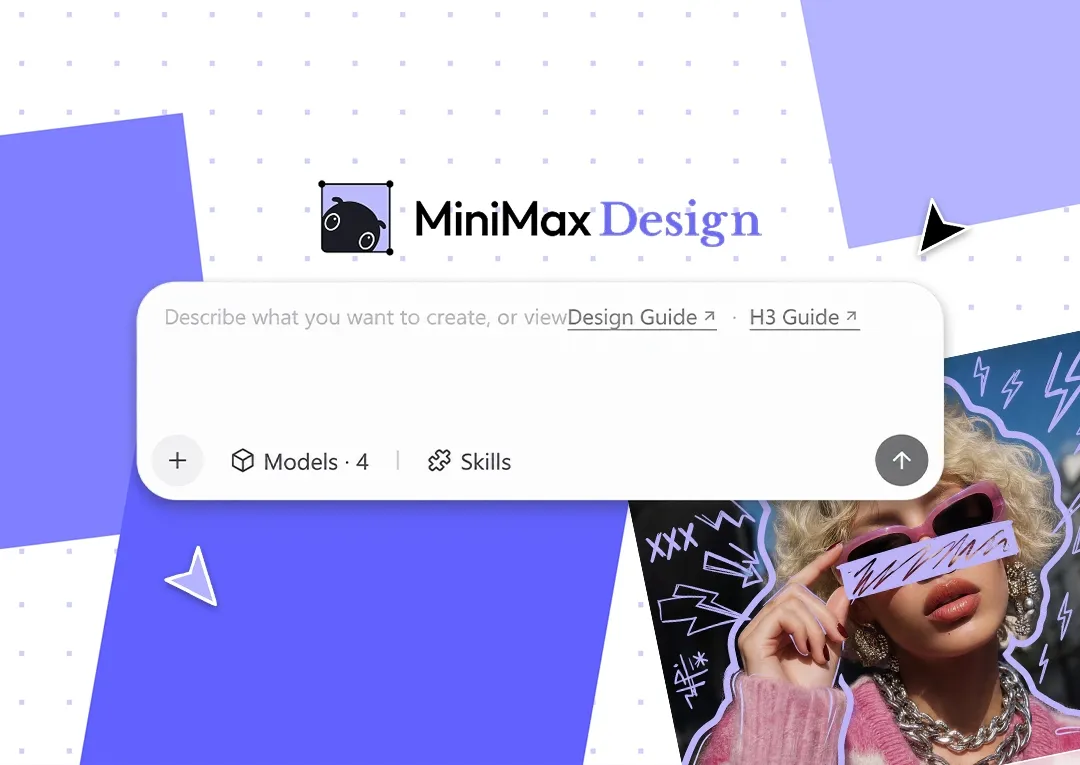
Upload your footage, describe the changes, and export your finished video in the MiniMax Design desktop app.
Name the clip or moment, describe the change, and say what to keep. Use these examples to make your editing requests clear.
Make it shorter.
Try this directionTrim the first clip so the action starts immediately. Keep the rest of the sequence.
Fix the captions.
Try this directionChange the first subtitle to “Meet your everyday essential” and keep its current position.
Make it look professional.
Try this directionAdd a transition between clips two and three. Leave the soundtrack and other cuts unchanged.
Learn how prompt-based video editing works and what you can create with MiniMax Design.
An AI video editor uses AI to help modify video footage. MiniMax Design turns natural-language instructions into edits such as trimming clips, adding subtitles, applying effects, and adjusting the frame.
Yes. Upload your video clips to MiniMax Design, choose a video model, describe what you want to change, and submit. Preview the result, then export your finished video.
Yes. Tell MiniMax Design which clip or moment to change and what to do. For example, ask it to shorten the opening or move a product close-up earlier. You give editing instructions in words.
Yes. Generate multilingual subtitles in MiniMax Design, then use text prompts to refine caption wording, timing, and on-screen placement before exporting your video.
Yes. Request transitions, filters, stickers, or video effects in MiniMax Design. Specify the clip, where the effect should appear, and the visual style you want, then preview the result.
Yes. Ask MiniMax Design to adjust the aspect ratio and framing for your platform. Check the crop and caption placement in each version, then export your video for TikTok, Instagram Reels, or YouTube Shorts.
An AI video editor changes footage you already have. An AI video generator creates new clips from prompts or references. Use MiniMax Design to create new scenes when needed, then arrange and edit them into your video.
Yes. Bring AI-generated clips and your own footage into MiniMax Design. Arrange the shots, refine captions and effects, and export them as a finished sequence.
Yes. MiniMax Design offers desktop clients for macOS and Windows. Download the client for your computer to edit videos with text prompts, preview your changes, and export the finished video.