Product Photos for Ecommerce
Create clean product images for online listings and lifestyle visuals for your store. Explore settings and layouts, then check product colors, proportions, and labels before publishing.
Transform your photos with AI photo editing. Change backgrounds, adjust lighting, and explore new styles to create standout product images, social posts, portraits, and campaign visuals—all starting with a photo you already have.
Explore new possibilities from one photo with MiniMax Design. Make edits with simple prompts, refine each result, and turn your images into designs and videos—all in one creative workspace.
Reimagine a single photo with new outfits, poses, settings, and visual styles. MiniMax Design uses your original image as a reference to explore fresh creative directions while keeping key features recognizable.
Turn your idea into a photo edit with everyday language. Describe the result you want, and let MiniMax Design transform the scene, composition, and style—without working through a complex sequence of editing tools.
Keep shaping your image as your ideas evolve. Adjust the mood, change a background, or take the design in a new direction with follow-up instructions. Build on previous edits without starting from scratch.
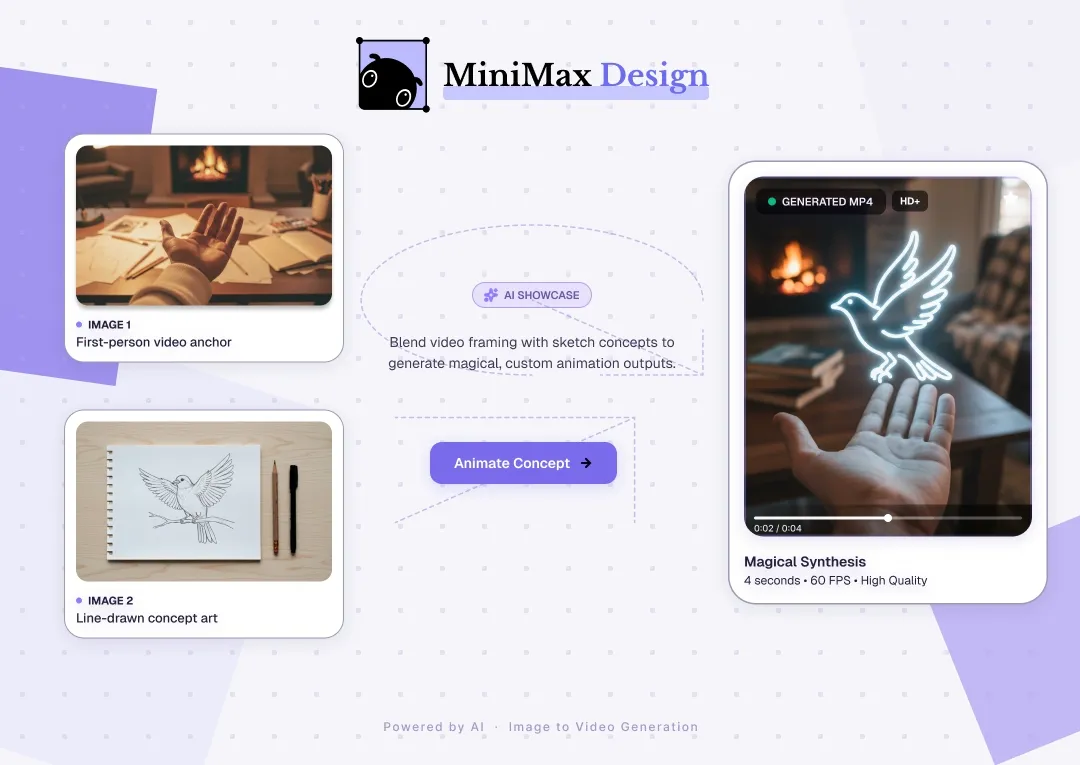
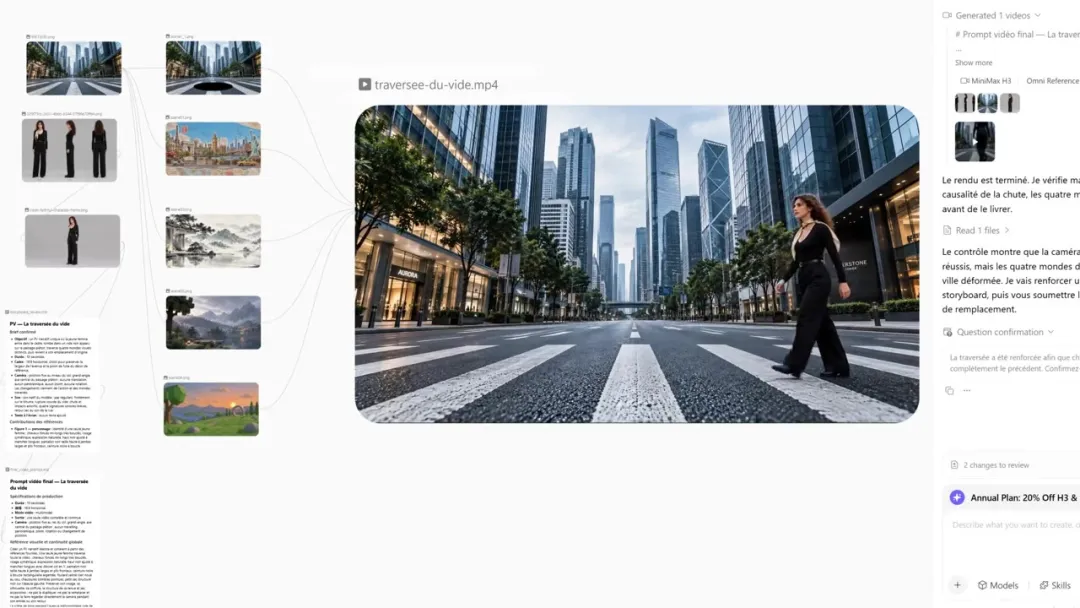
Go from photo editing to finished creative content with MiniMax Design. Refine your image, build an advertising layout, adapt it for social media, and turn it into a video—all in one workspace.
These starter prompts are inspired by the examples above. Describe the change and the details to preserve, then review the result and refine. Adapt each prompt to your own photo.
| Your goal | Try this prompt | Check the result |
|---|---|---|
| Refine a portrait | Refine the lighting in this portrait and explore a new pose. Keep the facial features, hair color, and natural skin texture recognizable. | Facial details, natural skin texture, and consistent lighting. |
| Transform a visual style | Turn this portrait into colorful pixel art. Keep the curly hair, yellow outfit, and cheerful expression recognizable. | Recognizable features, a consistent pixel style, and a clear composition. |
| Remove an object | Remove the hanging jacket behind the person. Keep the person, striped shirt, mirror, and lighting unchanged. Reconstruct the background where the jacket was. | The reconstructed background, mirror details, and edges around the person. |
| Create a face swap | Use the supplied face reference to reimagine the character in this flying scene. Match the expression and lighting to the scene. | Face proportions, lighting, and a coherent transition between the face and outfit. |
| Change a background | Place this lavender scrub jar in a garden with lavender flowers and smooth stones. Preserve the product shape, color, and label. Match the shadows to the scene. | Readable label, product proportions, clean edges, and believable shadows. |
| Create a product visual | Build an advertising layout using this hair curler and portrait as references. Use a light blue palette and leave space for a headline. Preserve the product details. | Product accuracy, clear visual hierarchy, and readable text after adding your copy. |
Create images for your store, personal profile, or next campaign. Start with a photo and shape it for the places you share it.
Create clean product images for online listings and lifestyle visuals for your store. Explore settings and layouts, then check product colors, proportions, and labels before publishing.
Refresh a portrait for your personal profile, creator page, or professional introduction. Explore lighting, backgrounds, and styles that fit the impression you want to make.
Turn an edited photo into a social post or campaign visual. Explore compositions, leave room for your message, and continue developing the image into a design or video.
An AI photo editor uses artificial intelligence to modify an existing image. Depending on the tool, edits can include changing a background, removing objects, adjusting light, or transforming the visual style. MiniMax Design lets you guide image edits with natural-language instructions and continue refining the result in a desktop creative workspace.
Open MiniMax Design on your desktop and add your photo. Describe what should change and what should remain, adding a reference if it helps. Review the generated edit, make focused adjustments, and download the result when it meets your needs.
Yes. You can use text instructions to guide edits in MiniMax Design. Be specific: name the object or area, describe the desired change, and identify details you want preserved. For example, ask for a different background while keeping a product’s label and shape.
Upload your photo and describe the new background, such as a studio setting or outdoor scene. State what should stay unchanged, including the subject and product details. Review the edges, lighting, and shadows, then use follow-up prompts to refine the result.
Upload your photo and describe the object to remove. Specify what should stay unchanged, then review the surrounding textures, edges, and shadows. Use a follow-up prompt to refine any details that need another pass.
Use the original photo as a reference and state which details to preserve, such as facial features, a product label, or its color. Make focused edits and compare each result with the source. AI can still alter details, so review the image before using it.
A photo editor changes the content or creative direction of an image, such as its background, objects, or style. A photo enhancer focuses on qualities such as clarity, noise, and resolution. Choose editing when you want a different image; choose enhancement when your main goal is improving the quality of the existing one. To create a new image from a prompt, explore the AI Image Generator.
Start with a clear, well-lit photo in which the subject and important details are easy to see. For product images, use a reference with a readable label and visible edges. For portraits, choose a photo with clear facial features. Keep the original so you can compare each edit.
MiniMax Design supports product and marketing creative workflows. Use photos and references you have permission to edit, and review the applicable service terms and model conditions. Before publishing, check that product details are accurate and that the image meets the requirements of your destination platform.
Yes. Use your edited image as the starting point for an image-to-video workflow in MiniMax Design. Describe the motion, camera direction, and scene you want, then review and refine the video as part of the same creative project. Explore Image to Video for more examples and guidance.