Portrait Transformations
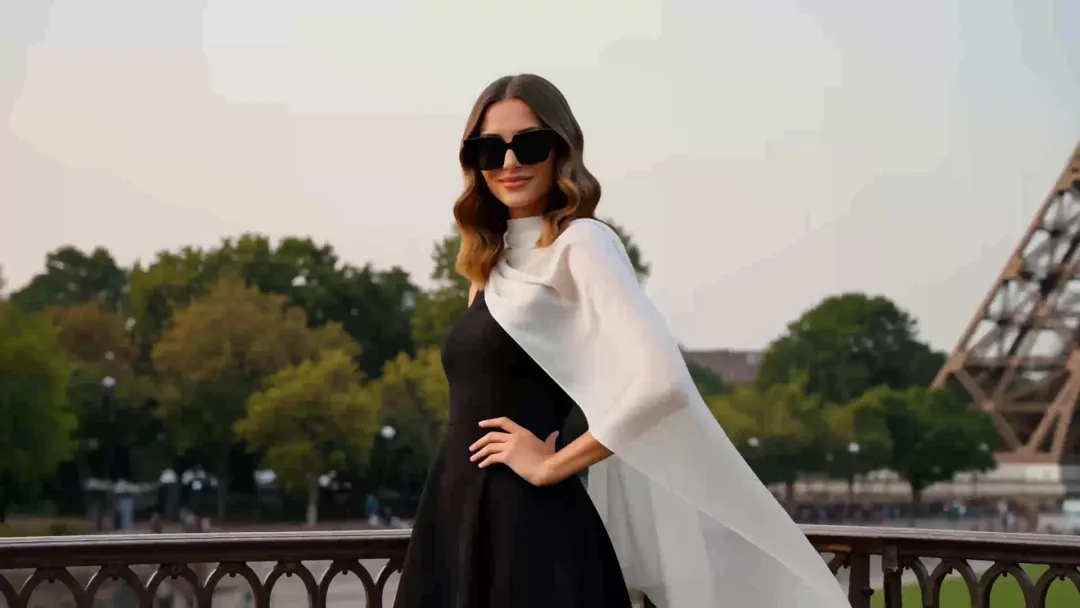
Turn portraits into videos with changing outfits, locations, and visual styles. Create fashion transformations and expressive photo animations for your social content.
Turn your photos into videos with MiniMax Design. Bring portraits and everyday moments to life, explore new looks, or create music visuals from your photos. Describe the motion you want and refine the result in one desktop workspace.
Bring portraits to life, turn everyday photos into moving moments, and create music videos from your visual references. Explore these photo to video ideas with MiniMax Design.
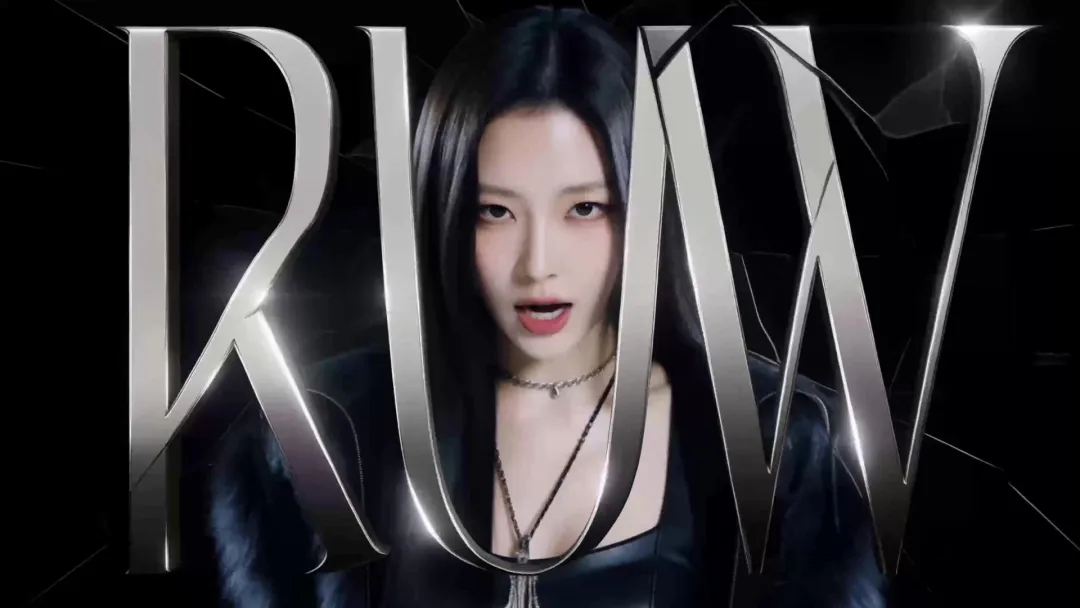
Turn portraits into videos with changing outfits, locations, and visual styles. Create fashion transformations and expressive photo animations for your social content.
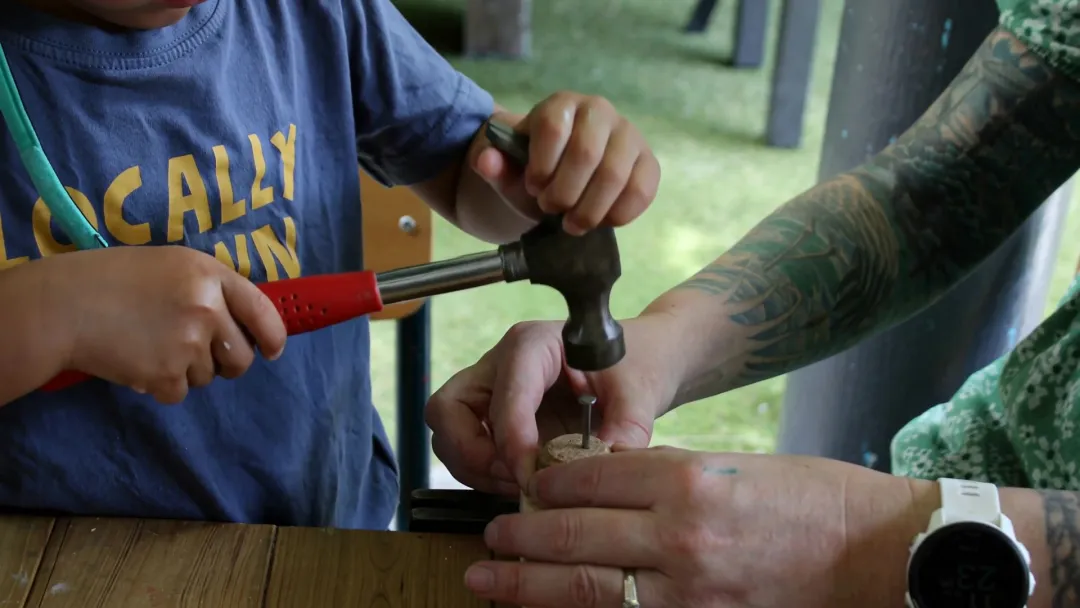
Bring everyday photos to life with small gestures, shared activities, and natural interactions. Turn a familiar still moment into a moving clip you can share.
Create a music video from portraits and visual references with expressive performances, rhythmic cuts, and bold effects. Bring your visuals together around the mood and energy of your song.
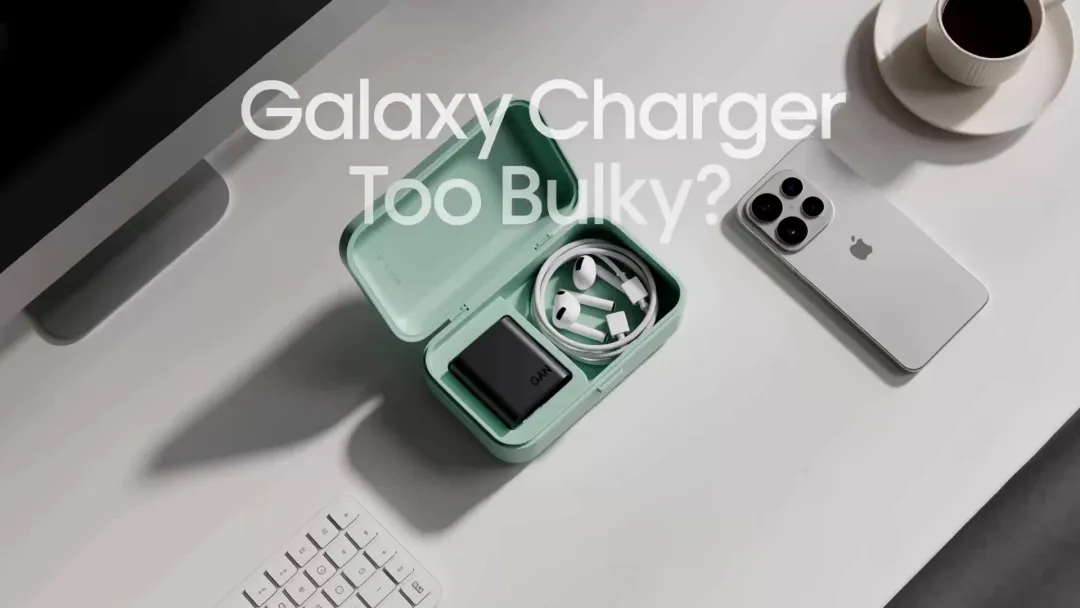
Turn product photos into dynamic showcases with close-up views, motion, and feature highlights. Create video content for online stores, product launches, and social media campaigns.
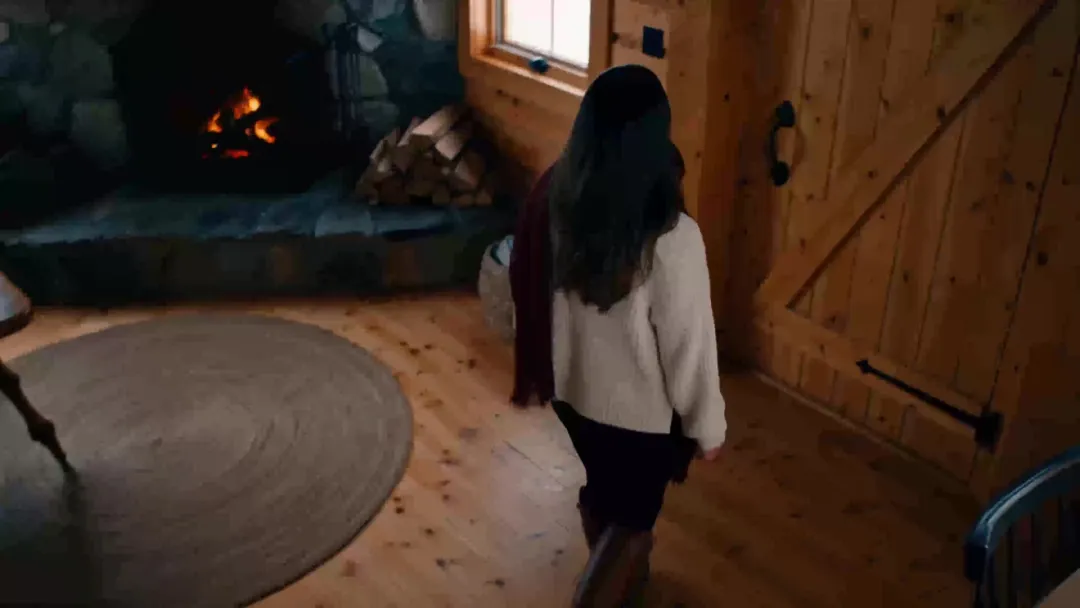
Transform photos into cinematic scenes with atmospheric lighting, character movement, and immersive settings. Give your still images the look and feel of a film.
Bring photos and character artwork to life with expressive movement and imaginative effects. Create stylized animations for social posts, short films, and creative projects.
Choose the visual style, guide the movement, and explore AI video models to turn your photo into the video you have in mind.
Start with a portrait, product shot, or everyday photo. Use its subject, composition, and visual style to guide your video, then add movement and refine the look to match your creative direction.
Turn a still photo into a moving scene by describing how the camera should move. Ask for a slow push-in, a smooth orbit, a sweeping pan, or a tracking shot, and guide the pace for cinematic clips, product showcases, and campaign videos.
Explore multiple AI video models in MiniMax Design to bring your photo to life. Try the same photo with different models, compare their motion and visual styles, and refine the result in one workspace.
Create your photo animation in three simple steps with MiniMax Design.
Answers to common questions about animating photos and creating videos with MiniMax Design.
Yes. A single photo can be the starting point for an AI-generated clip. Upload it to MiniMax Design and describe the movement you want. You can animate the subject, add motion to the scene, or develop a new look from the original photo.
You can use a group photo as a reference and describe how the people should move. Clear, unobstructed faces and simple actions make the direction easier to follow. Results vary by photo and model, so preview each person before sharing the clip.
Yes. Use a portrait as a reference and describe the outfit, setting, or visual style you want. MiniMax Design lets you explore different versions and refine the result. The exact transformation depends on your photo, instructions, and selected AI video model.
Yes. Use portraits and other photos as visual references to create footage for a music video. Develop performance shots, stylized scenes, and transitions, then combine the clips with music and editing. A finished music video may involve several generated clips.
Describe the movement you want for the person or object and ask for a fixed camera and a still background. These instructions guide the AI rather than locking parts of the photo, so the result may need refinement. Start with a simple movement for more focused animation.
No. A slideshow displays a sequence of still photos, often with zooms and transitions. AI photo animation generates movement within a photo, such as a changing expression, a moving subject, or motion in the background.
The photo guides the appearance of the person, but AI-generated facial details can change. A clear portrait and simple movements can help you work toward a closer result. Preview the animation and refine it if the face or expression changes more than you want.
Yes. The creation workflow shown on this page is available in the MiniMax Design desktop app. Download the app, add your photo to the workspace, and describe the animation you want to create.