Text-to-Video
Turn a written idea into video with Kling 3.0 Omni. Describe the subject, action, setting, and camera movement, then adjust your prompt to change the look and pacing. Generate and refine your clips directly in MiniMax Design.
YOUR VISION. EVERY FRAME.
Create AI videos with Kling 3.0 Omni in MiniMax Design. Turn text, images, and video references into multi-shot scenes with consistent characters and native audio, then edit your clips in the same project.
Choose how to start, then control the shots, characters, sound, and movement. Generate with Kling 3.0 Omni and keep refining your video in MiniMax Design.
Turn a written idea into video with Kling 3.0 Omni. Describe the subject, action, setting, and camera movement, then adjust your prompt to change the look and pacing. Generate and refine your clips directly in MiniMax Design.
Bring a still image to life while keeping its key visual details. Use your image as the starting point, then describe how the subject and camera should move. Adjust the motion and pacing to develop the shot in MiniMax Design.
Plan a multi-shot sequence with Kling 3.0 Omni. Describe each shot’s framing, action, camera movement, and duration to shape the pace. Generate clips up to 15 seconds long, then arrange and edit your chosen takes in MiniMax Design.
Keep characters and products recognizable with image and video references. Kling 3.0 Omni uses these inputs to guide appearance across shots. Show the details that matter, such as faces, clothing, and product shape, then review each take for consistency.
Create dialogue, sound effects, and background audio alongside your video. Specify each speaker’s words and delivery to guide the scene. Kling 3.0 Omni supports native audio and character voice references; available audio options depend on the input mode.
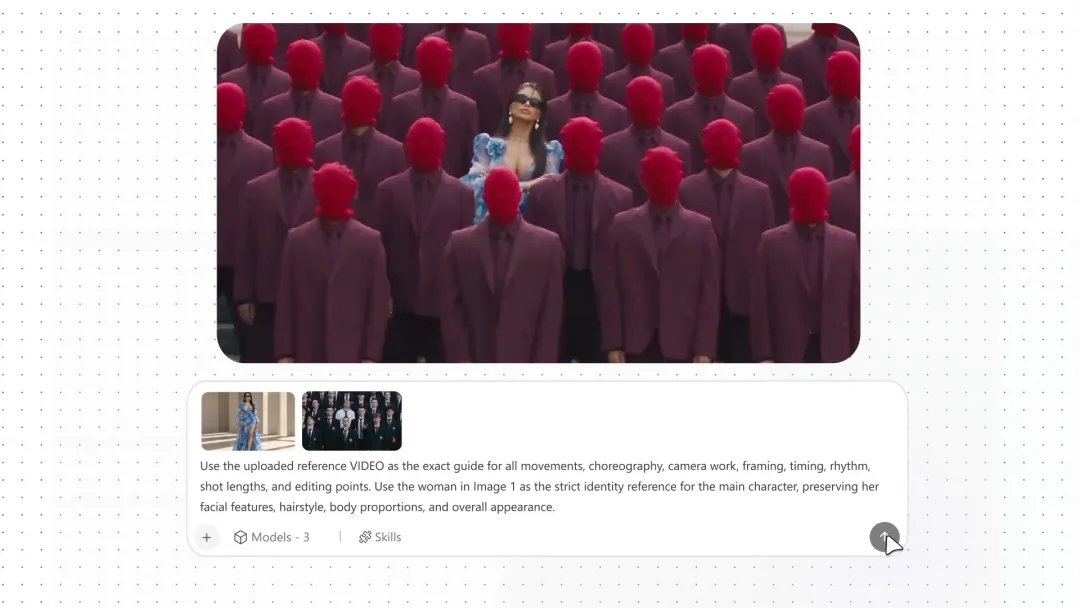
Use a reference video to guide movement, timing, or camera direction, then describe what should change. Kling 3.0 Omni combines visual references with text instructions. For precise motion transfer, check the dedicated Motion Control mode available in MiniMax Design.
Find ideas for ads, social videos, short films, animation, and more. These MiniMax Design project examples show how individual clips can become a finished video.
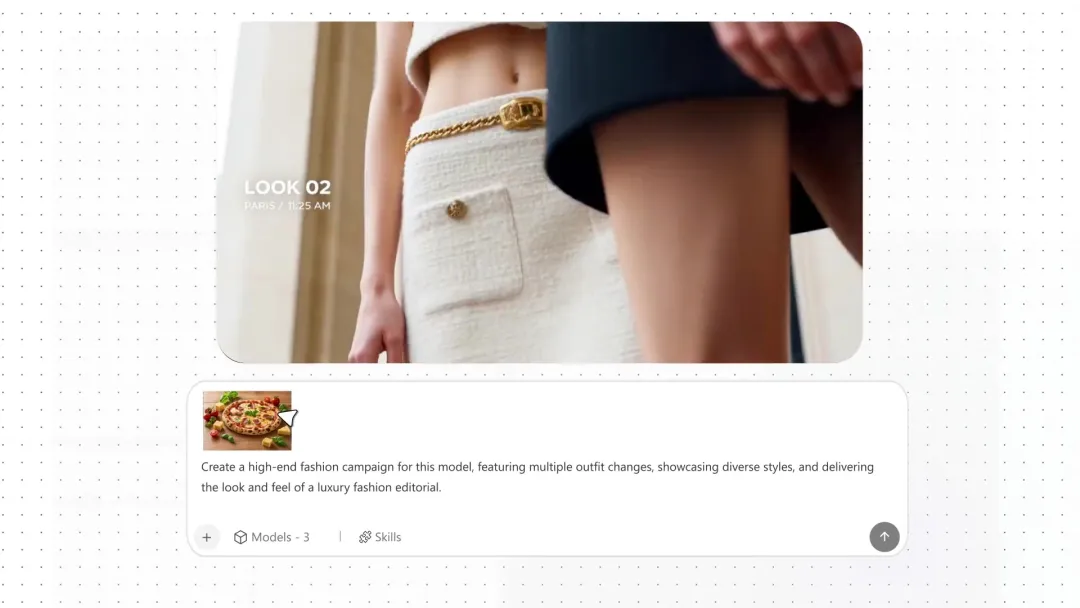
Turn a product photo into a cinematic ad with camera moves, expressive lighting, and sound. Create launch teasers, product reveals, and ecommerce campaigns.
Create videos for TikTok, Reels, and YouTube Shorts with expressive characters, smooth motion, and native audio. Shape the opening to catch attention.
Plan multi-shot scenes with consistent characters and dialogue. Test camera angles, pacing, and performances before moving into production.
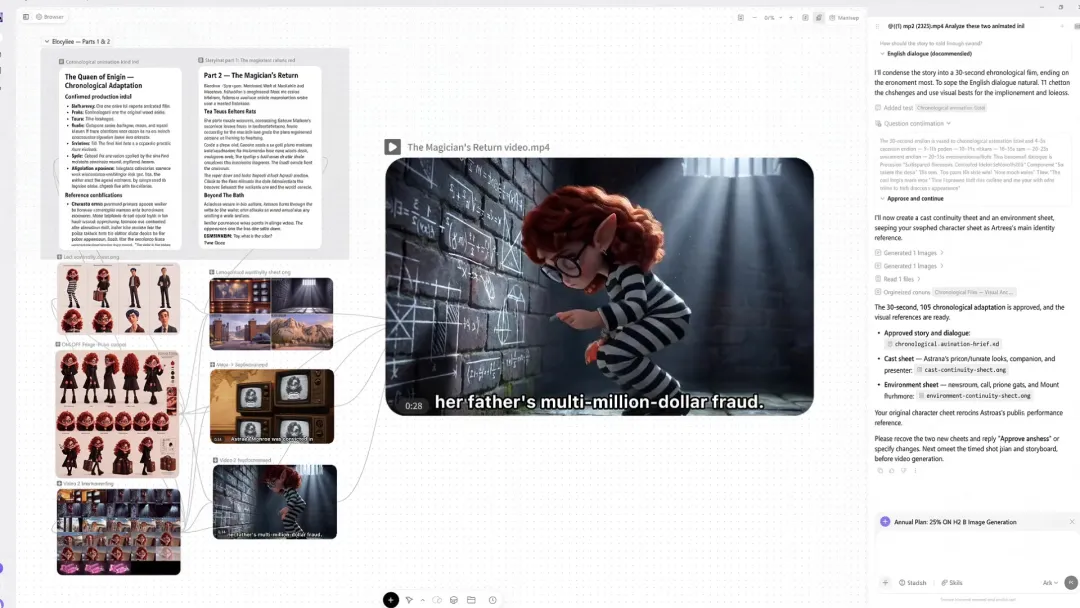
Bring character artwork to life with expressive movement, dialogue, and cinematic shots. Develop animated shorts, character introductions, and story scenes.
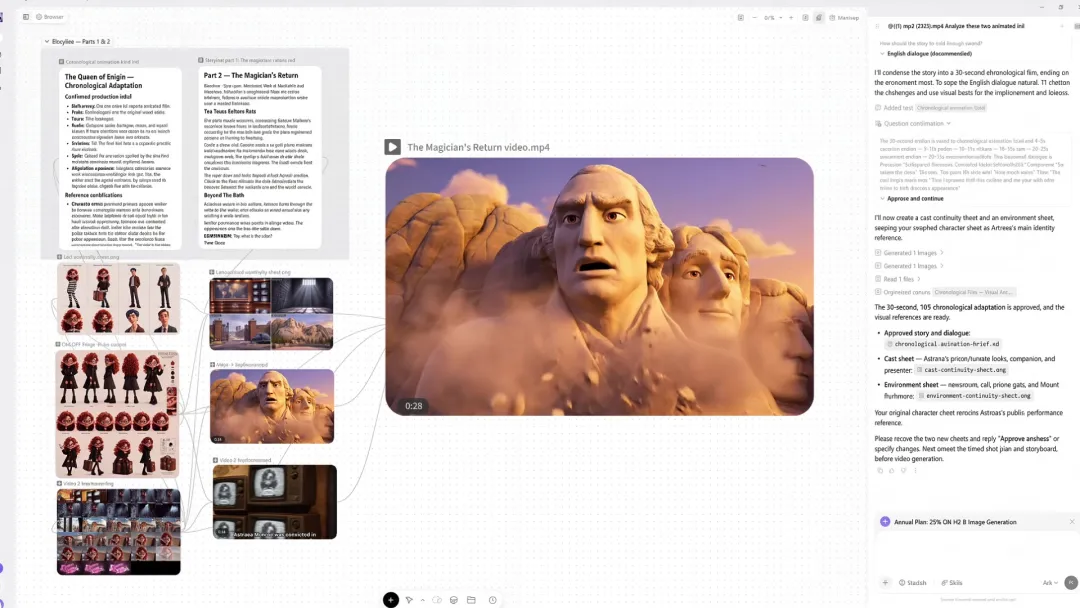
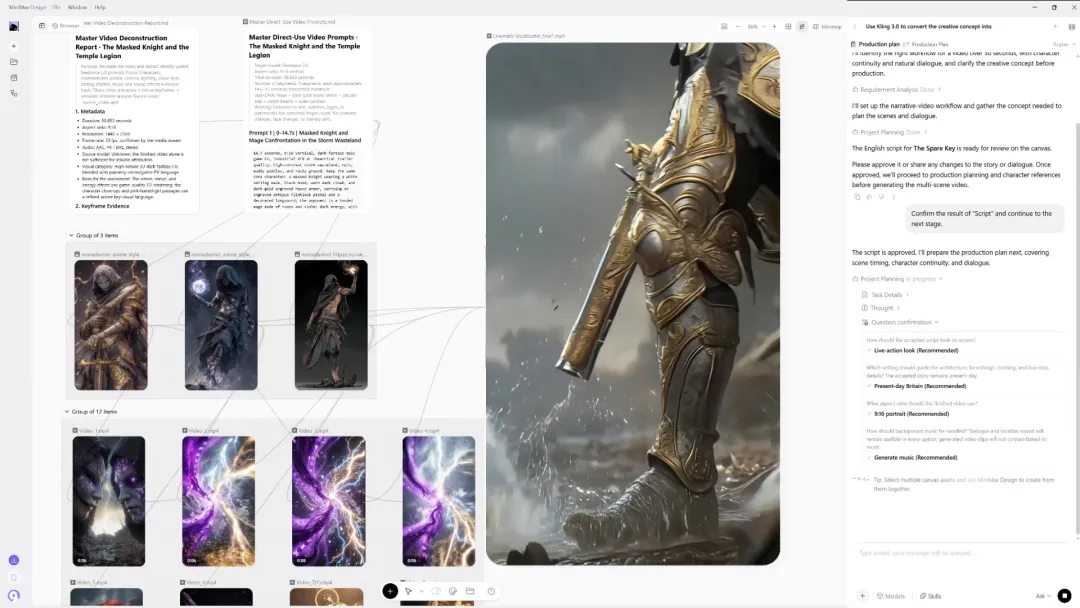
Turn character art and world references into game trailer concepts. Explore dramatic reveals, action scenes, and story moments for your next pitch.
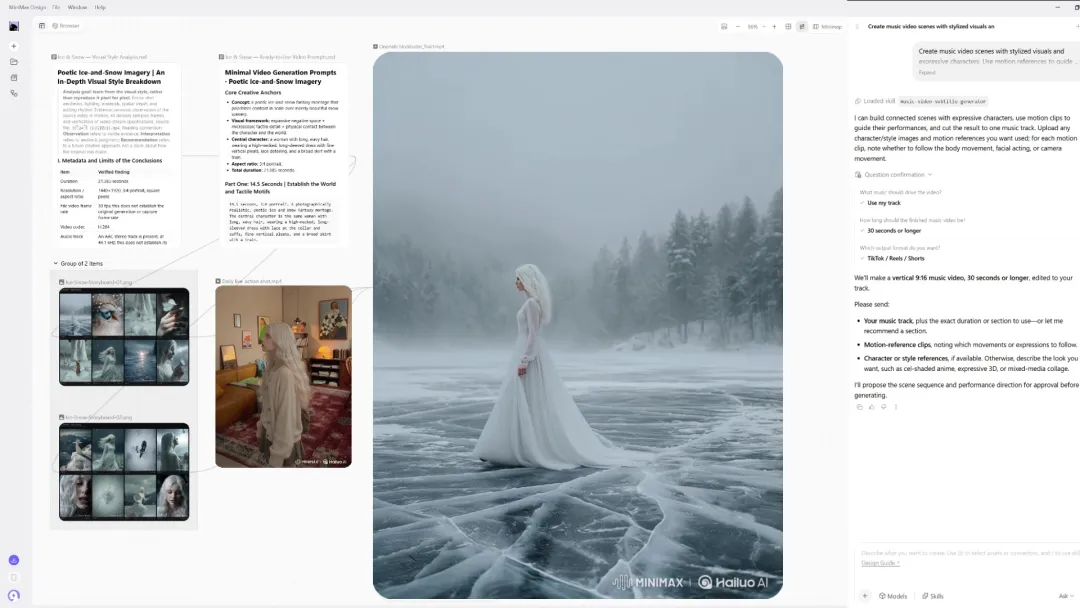
Create music video scenes with stylized visuals and expressive characters. Use motion references to guide performances, then edit scenes to your track.
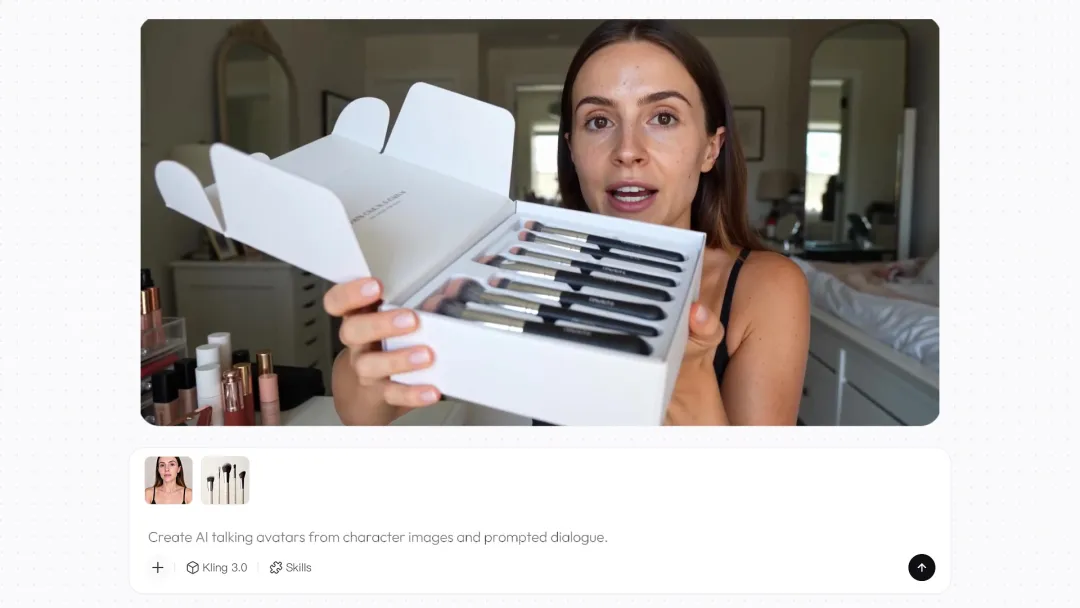
Create talking-head videos with character images and written dialogue. Use expressive delivery and lip sync for tutorials, product demos, and team updates.
Generate with Kling 3.0 Omni, review each take, and edit your clips in one project. Keep your references, captions, and sound together as your video takes shape.
A stronger result starts with a clearer creative brief. Use these six tips to guide your inputs, shots, sound, and revisions in MiniMax Design.
For multi-shot video, give each shot one clear action and a place in the sequence. Explain what changes between shots and which details should stay the same.
Kling 3.0 Omni is an AI video model that works with text, images, and video references. It is integrated into MiniMax Design, so you can generate scenes and edit your clips in one project. The MiniMax Design Agent can also help develop ideas, scripts, and visual assets.
Download MiniMax Design on a supported Mac or Windows PC and select Kling 3.0 Omni. Start with a text prompt, add an image to animate, or choose a supported reference input. Review the available settings and credit cost before generating.
The download on this page is for the desktop app. On your phone, use the page-link option and open the link on your computer. MiniMax Design requires macOS 13 or later, or Windows 10 or later on an x64 PC; Windows ARM is not currently supported.
Kling 3.0 Omni supports generated clips up to 15 seconds long. Set the duration and shot instructions for your selected mode, then combine clips in MiniMax Design for longer videos. A finished project may include several generations and edits.
Yes. Kling 3.0 Omni supports native audio, including dialogue, sound effects, and background sound. Describe who speaks, their exact words, and delivery. Audio availability depends on the selected input mode; check its settings and review the generated speech and lip movements.
Kling 3.0 Omni supports video references alongside text instructions to guide a result. Reference-based generation and dedicated Motion Control are different workflows: Motion Control focuses on transferring a performance to a character. Check the model and mode in MiniMax Design for the inputs and controls available.
Check the generation resolutions offered for Kling 3.0 Omni in MiniMax Design. Availability depends on the selected model and mode. Generation resolution and export resolution are separate: exporting at 4K does not make a lower-resolution clip native 4K.
Describe one clear subject and action, then add the setting, framing, camera movement, lighting, and sound. For multiple shots, separate the shots and explain what stays consistent. Start with a simple prompt and make targeted revisions rather than adding conflicting directions.
Use clear references and repeat the details that matter, such as clothing, hairstyle, product shape and details, and lighting. Keep camera moves manageable and compare the result with the reference. References help guide consistency, but each generated take still needs review.
For ads and client work, check MiniMax Design’s current terms and your plan’s usage rights, along with permissions for the reference images, video, and audio in your project.
Start with text or an image. Generate your shots, refine the edit, and finish your video in the same project.
Create reference images, explore animation, and develop your next video project with MiniMax Design.
Turn creative briefs into matching images and video assets.
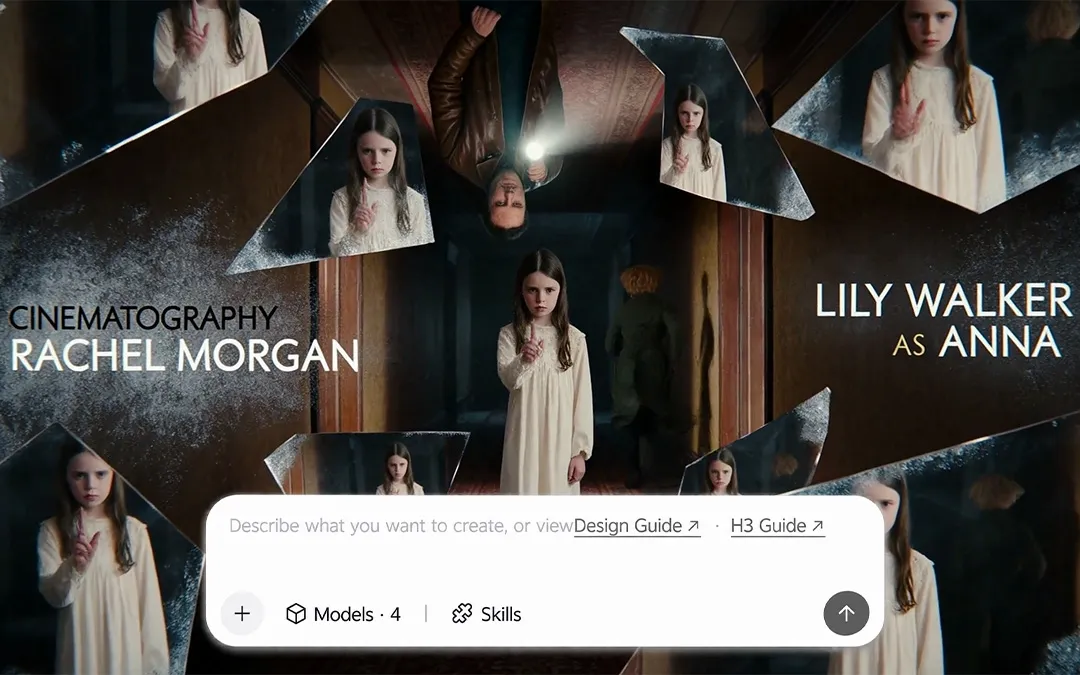
Explore video ideas, camera moves, and visual stories.
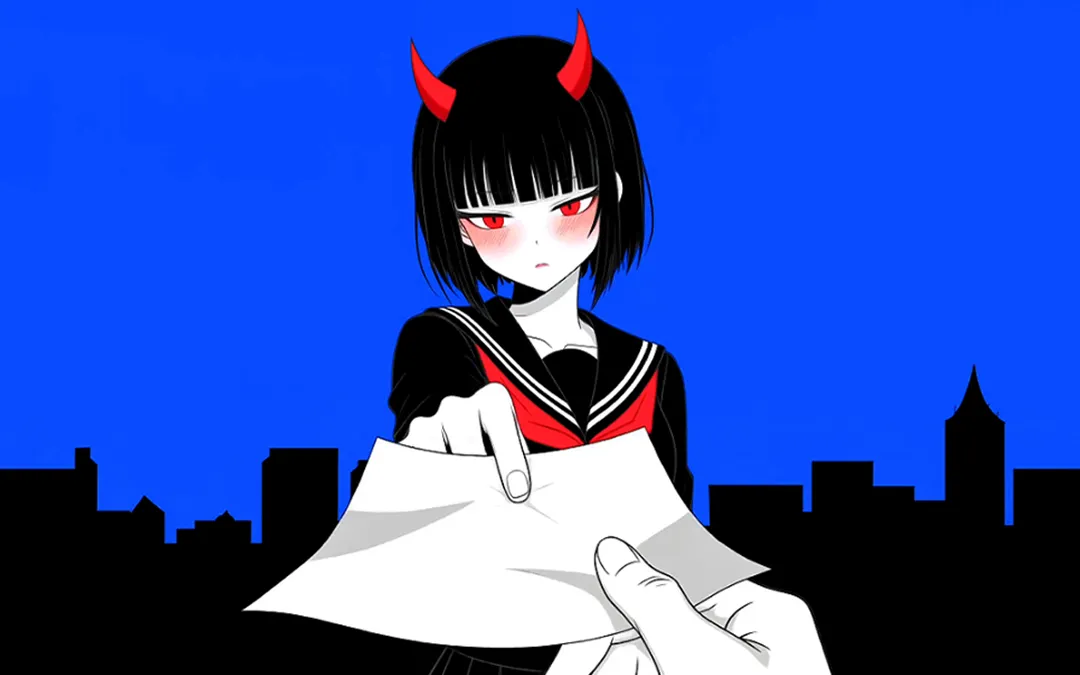
Explore anime characters, artwork, and scene concepts.
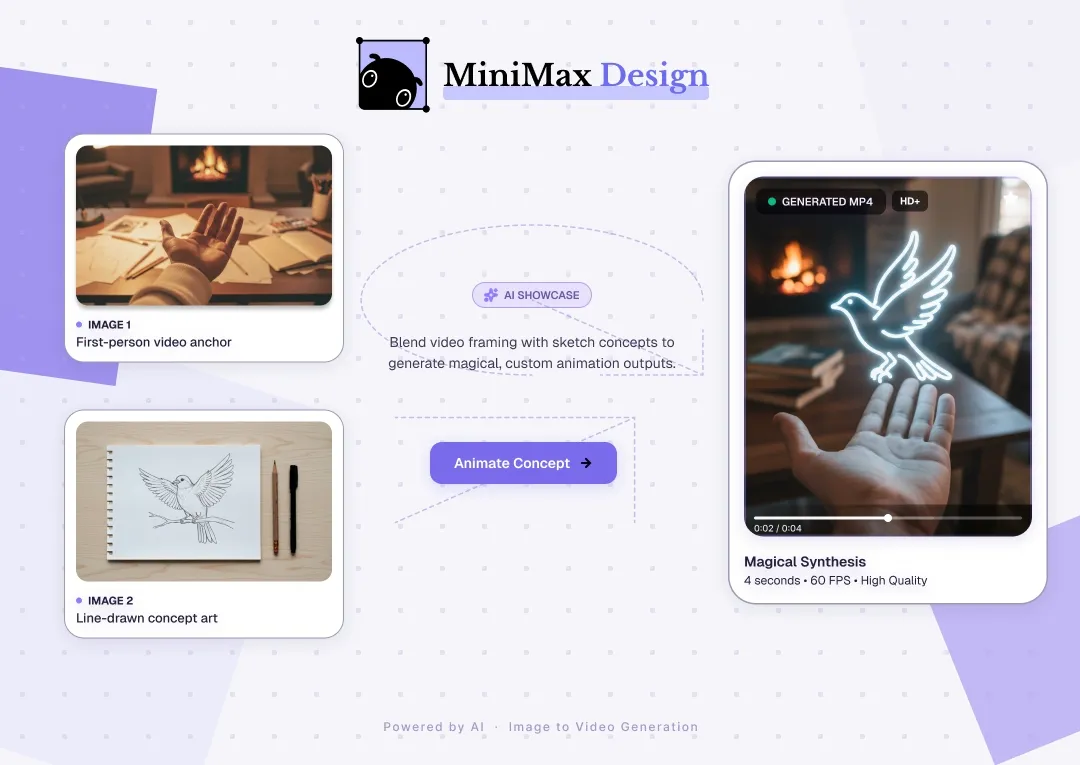
Turn a finished image into a moving scene.
Create videos from text or images with MiniMax H3 Max.
Generate and refine images from a prompt or visual reference.